
Android / Phones & tablets
StajPilot for Android
STAJ for performance. PILOT for editing. A display, MIDI controller, and editor for KEMPER PROFILER Player, Stage, Head (Toaster), and Rack, including MK1 and MK2 modes.
Quick Connection Guide
Complete all three steps before use.
Connect over USB
USB-B: Android USB-C → Kemper USB-B. Use a data cable and a compatible host/OTG adapter if needed. No USB mode change is required.
USB-A: Kemper USB-A → Android. Set Android to MIDI as shown below.
Set the Kemper MIDI channel
In Rig Manager, open the PROFILER's MIDI settings. Set MIDI Global Channel to 1 or Omni.
This is required for StajPilot's bidirectional MIDI SysEx communication.
Set DEVICE and PLAYER LEVEL
Required: open SETTING (gear button). Set DEVICE to PLAYER, MK1, or MK2 to match your Kemper.
Player users: set PLAYER LEVEL to your actual LEVEL I, II, or III.
Tap SAVE to apply.
Android MIDI setup (Kemper USB-A only)
- Settings > About phone/tablet: tap Build number seven times to enable Developer options. Menu names vary.
- Set Developer options > Default USB configuration > MIDI to select MIDI automatically when reconnecting.
- After connecting, check the USB notification: Use USB for: MIDI.
If the default MIDI option is unavailable or resets, select MIDI manually each time. USB debugging is not required.
Stage 2 launch special: US$29.99. StajPilot is publicly available on Google Play. Stage 2 features require version 2.0.0; update availability depends on review and regional rollout. Local prices may vary.
- Player / Stage / Head / Rack
- STAJ & PILOT modes
- USB MIDI
- Chocolate Bluetooth pedal
- No subscription
On stage
See your rig. Stay in control.
Effects, with their actual names
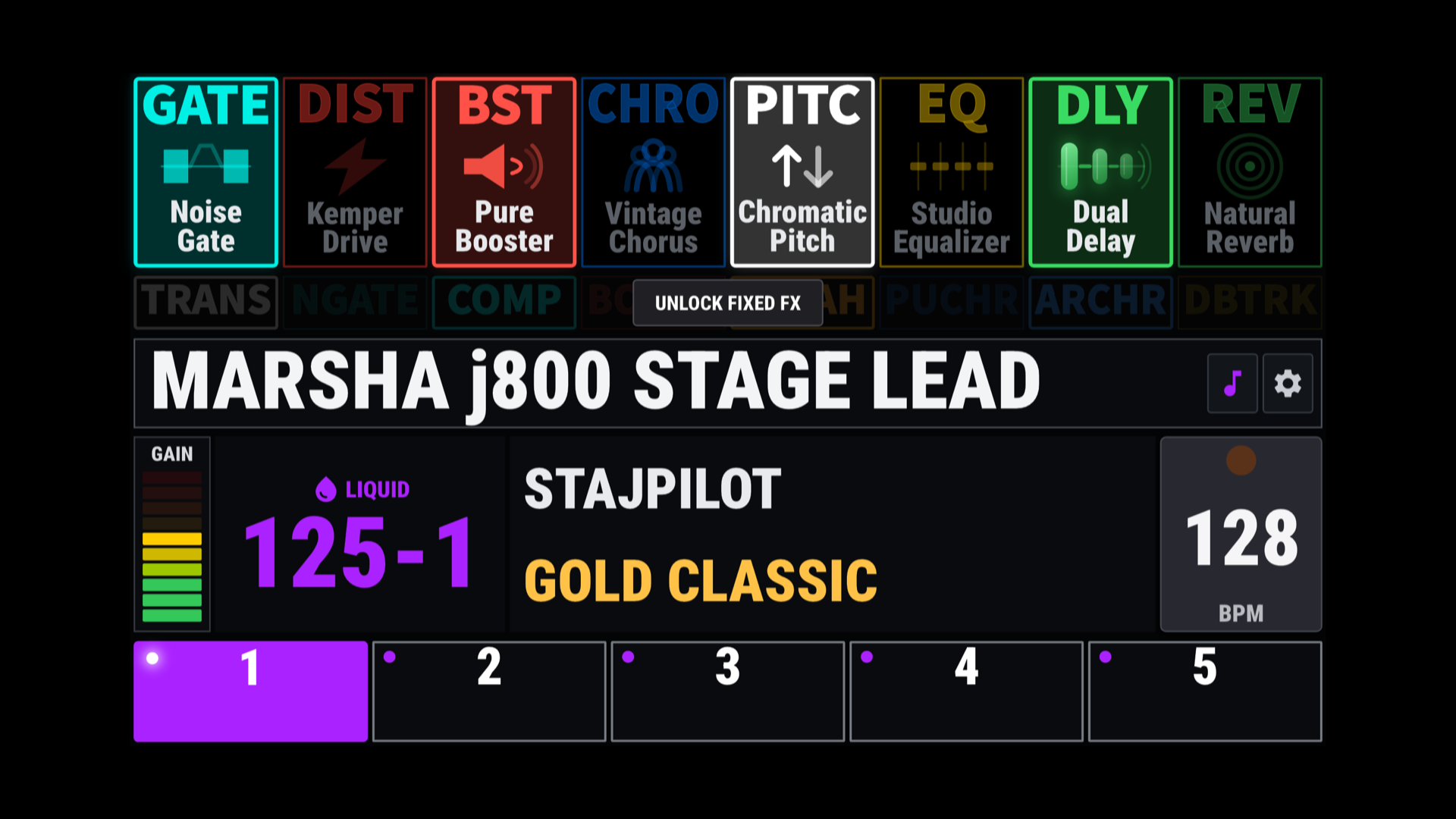
See detailed effect names, live on/off states, Effect I-IV assignments, and Player FX1/FX2 badges where supported. Touch a block to control it. Supported Fixed FX states refresh when switching rigs, rather than through continuous real-time synchronization. Fixed FX controls are disabled for MK1 and in Browser Mode.
Player, Performance & Browser
Choose Player, MK1, or MK2 in settings. On supported Profilers, view Performance names and five slots in Performance Mode. Browser Mode uses rig navigation instead of Performance slots. Rig, author and amplifier names, gain, Tap Tempo, and Pedal Morph display keep essential information close at hand.
Custom tuning, your way
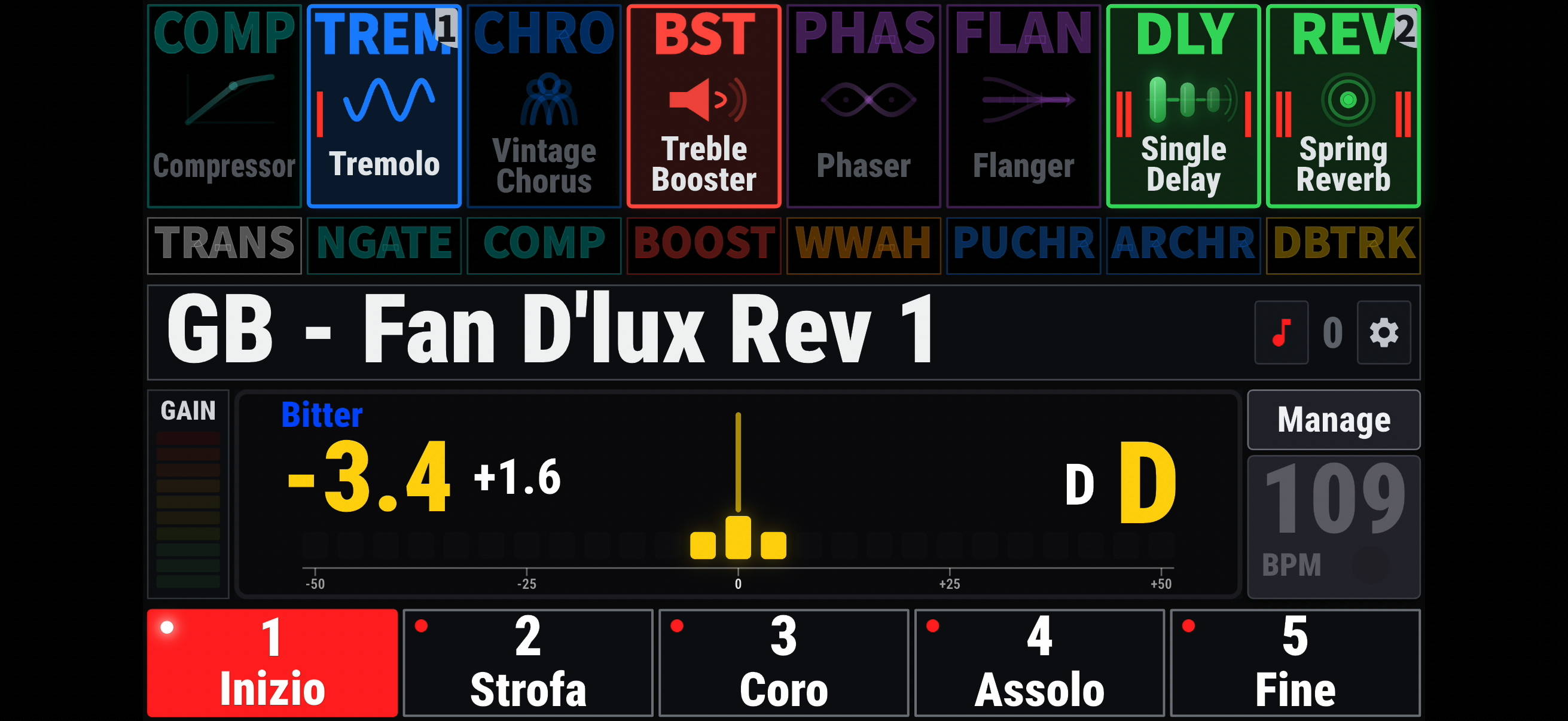
Choose Needle, Needle with decimal cents, or Strobe, with an optional full-screen view. Custom Tuner provides three renameable profiles with E A D G B E open-string offsets from -15.0 to +15.0 cents in 0.1-cent steps. Custom offsets apply to Needle mode; the Standard note and cents remain visible as a reference.
Your own Song Mode
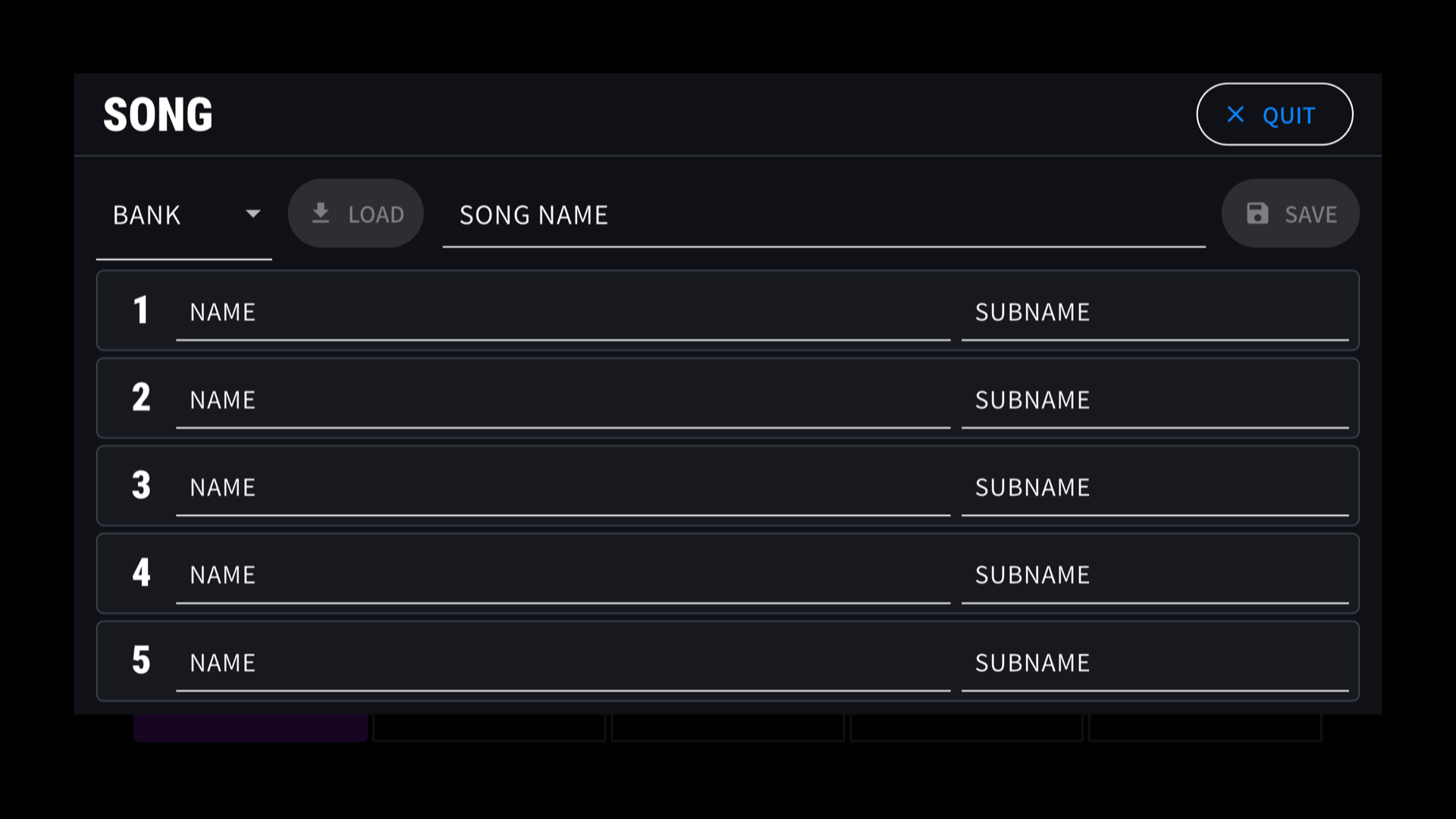
Keep custom names for up to 125 songs and five slots per song. Song Mode works with Player banks and Performance slots on larger PROFILER models. Use multilingual names, emoji, and amp images without extra name queries to the Profiler. Browse 25 songs at a time, long-press to edit, or use the web Song Editor with file export/import. Normal app updates retain Song data; deleting the app may remove it.
 Open full-size Custom Tuner image
PILOT mode: effects and beyond
Edit Effects, Rig, Input, Fixed FX, Amp, Cabinet, and Output, subject to model and Player Level. Choose effect types and available presets, then adjust knobs, switches, selectors, and numeric values. PILOT is unavailable in Browser Mode.
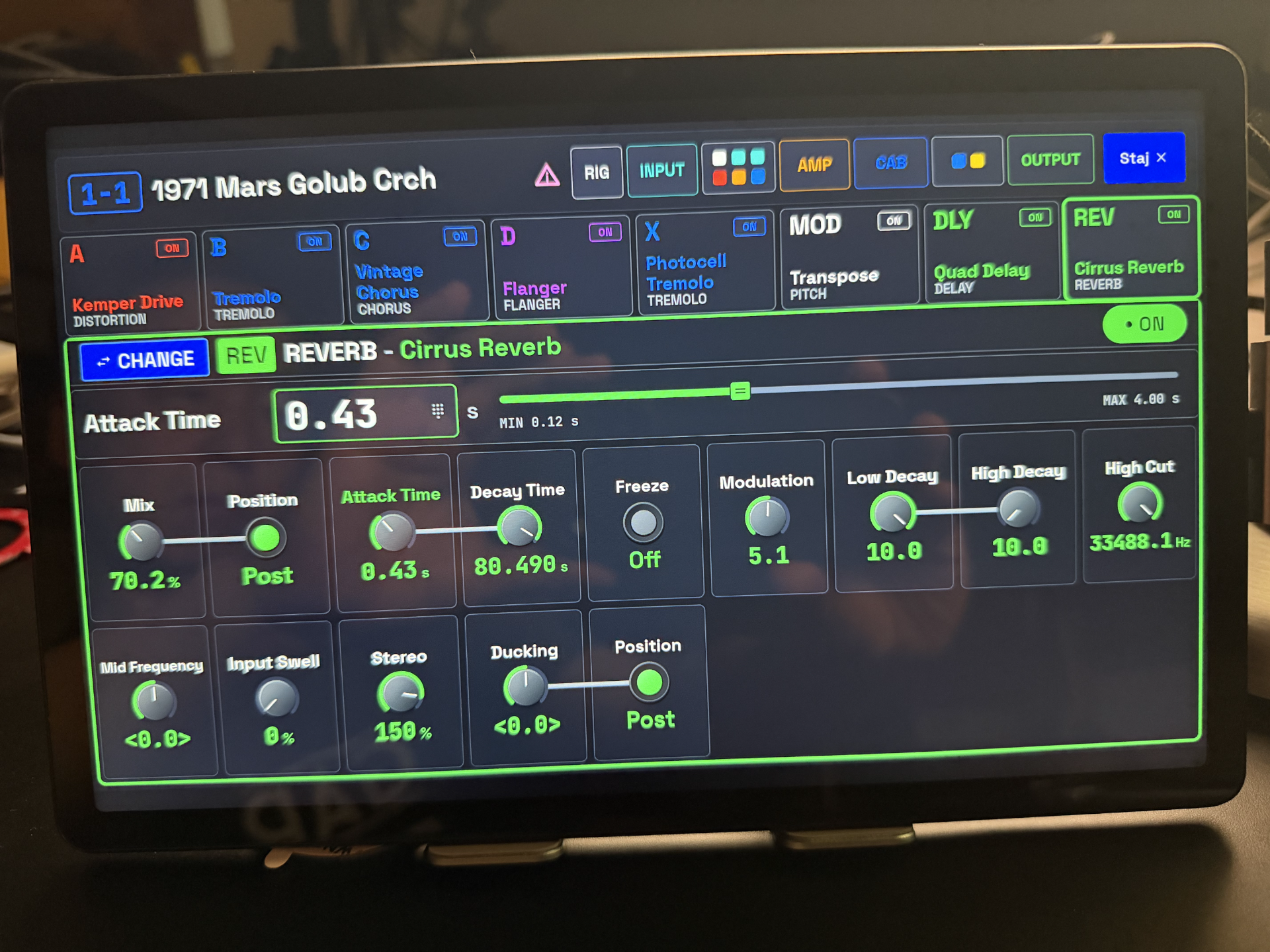
Save your changes with STORE on the KEMPER itself.
Select the correct device and Player Level before editing. Validation is ongoing and some values may differ. Read the PILOT editing notes.
Streaming first
STAJ uses incoming MIDI for live display information. PILOT combines incoming MIDI, targeted requests, and polling where needed to reduce unnecessary device load. It is not fully bidirectional: avoid changing controls on the Profiler itself while editing in PILOT.
StajPilot uses USB MIDI and does not intercept proprietary, non-MIDI communication protocols. Fixed FX states, gain, amplifier name, and author name are refreshed on rig changes where supported.
Explore without hardware. Tap DEMO at the bottom-right of the waiting screen. Demo Mode does not send MIDI commands.
Public release / Google Play
StajPilot for Android.
Stage 2 launch special: US$29.99. No tester registration is needed to purchase the public app. Existing purchasers continue to receive updates without buying again. Local prices and version availability may vary.
Get StajPilot on Google PlayAndroid Bluetooth MIDI
Keep your hands on the guitar.
External Bluetooth MIDI pedal support is currently limited to M-VAVE Chocolate. Other Bluetooth controllers are not currently supported. The pedal connection works alongside, and does not replace, the USB-connected PROFILER.
Pair in Android first
Power on the pedal and pair it in Android's system Bluetooth settings. StajPilot uses supported controllers already paired with the operating system.
Allow Bluetooth access
Grant Bluetooth or Nearby Devices permission when requested. Open the Bluetooth Pedal section in StajPilot's settings and refresh the paired-device list if needed.
Check the pedal connection
Confirm the pedal is connected in the app before using its MIDI controls. Pair each pedal separately when using more than one. The main screen shows the connected-pedal count.
Bluetooth device information and MIDI data are not sent to an external server. Location data is not collected or stored. Read the privacy policy.
Getting started
Connect over USB.
Choose the connection that matches your PROFILER's USB port. The Android device has a different USB role in each setup. USB-A device mode is available only where the Profiler and Android device support it.
Physical devices tested: KEMPER PROFILER Player LV3 and Stage MK1. MK2 mode is included, but physical MK2 testing has not yet been completed.
Before editing: choose Player, MK1, or MK2 in Settings. Player users must also choose the correct Level so PILOT exposes the appropriate controls.
Profiler USB-B: Android as USB host
Your Android phone or tablet acts as the USB host and connects to the Profiler's USB-B port. Android's USB use setting does not need to be changed to MIDI for this setup.
Power on the Profiler
Make sure your KEMPER PROFILER is powered on.
Connect a data-capable cable
Use a suitable USB OTG/host adapter and USB data cable to connect to the Profiler's USB-B port. Charge-only cables will not work.
Allow access and open StajPilot
If Android asks for USB access, select StajPilot and allow it. The waiting screen changes to the controller once MIDI communication begins.
Compatible Profiler USB-A: Android as a USB MIDI device
For a compatible USB-A host port, the PROFILER is the USB host and the Android device acts as a USB MIDI device. We tested this setup with a KEMPER PROFILER Stage MK1 and Player. This can leave USB-B available for a PC running Rig Manager.
Set MIDI as the default, or select it each time
To have Android select MIDI automatically when you reconnect, enable Developer options and set Default USB configuration > MIDI, if your device offers it. Without that default setting, select MIDI manually each time you connect the cable.
Connect the devices
Power on the PROFILER and connect its USB-A port to your Android device's USB port with a data-capable cable.
Select MIDI for this connection
While connected, open Settings > Connected devices > USB and confirm that the USB use option is MIDI. If it is not, select MIDI now. On some devices, this choice is also available from a USB notification. Menu names vary by manufacturer.
Confirm communication
Return to StajPilot and check that the current rig information appears. A USB connection label alone does not confirm that MIDI data is being received.
Keeping MIDI as the default USB mode requires the Developer options > Default USB configuration > MIDI setting. If you do not enable Developer options, select MIDI manually after every connection. Some devices may still return to No data transfer despite the default setting, so check the active mode after reconnecting. USB debugging is not required for StajPilot. Depending on the device and firmware, a USB MIDI connection may still fail even when MIDI is selected.
Connection help
Check the connection, then the controls.
Profiler USB-B is not recognized
Confirm your Android device supports USB Host/OTG mode, the Profiler is powered on, and the connection is to its USB-B port. Try a different data cable and compatible OTG adapter. Android's USB settings and permission prompts vary by manufacturer.
USB mode changes after reconnecting
For a compatible Profiler USB-A connection, set Developer options > Default USB configuration > MIDI if you want MIDI selected by default. Without that setting, select MIDI in Android's USB settings or notification each time you reconnect. Verify the active mode even with the default set, because behavior varies by device. For a Profiler USB-B connection, Android must be the USB host, so selecting the Android peripheral MIDI mode is not the fix. A compatible OTG/host adapter may help establish the host role.
A paired pedal does not respond
Confirm the pedal is paired in Android's Bluetooth settings, Bluetooth is on, and the app has the required permission. Check the Bluetooth Pedal section in StajPilot and refresh the paired-device list. Being paired is not the same as having an active MIDI connection.
The tablet switches screens when a pedal powers off
For FootCtrlPlus/Chocolate Plus, turn Input device off in that pedal's Android Bluetooth settings and leave it paired. Repeat for every pedal. See the Bluetooth setup notes above.
Using multiple pedals or reconnecting a pedal
Pair each supported pedal separately in Android. Keep saved pedals paired when turning them off. Once powered on again, check the app's connected status; refresh the list if necessary. Do not use Forget simply to power a pedal down.
Some rig or effect information is missing
Check the USB connection, connector fit and device power. Try another cable/adapter combination, and record which information is missing. A detected USB device alone does not confirm complete MIDI reception.
Still need a hand?
Send your Android device model and OS version, PROFILER model and firmware, cable/adapter details, pedal model if applicable, and the steps that reproduce the issue.
StajPilot is an independent third-party application and is not affiliated with or endorsed by Kemper GmbH.
Compatibility and proper operation with KEMPER PROFILER devices are not guaranteed.
Changes to device hardware, firmware, communication protocols, or operating systems may affect, limit, or discontinue some or all functionality.
Test your full setup before using it at an important event.
KEMPER and PROFILER are trademarks of Kemper GmbH. All other trademarks belong to their respective owners.
Continued updates and support for StajPilot are not guaranteed.